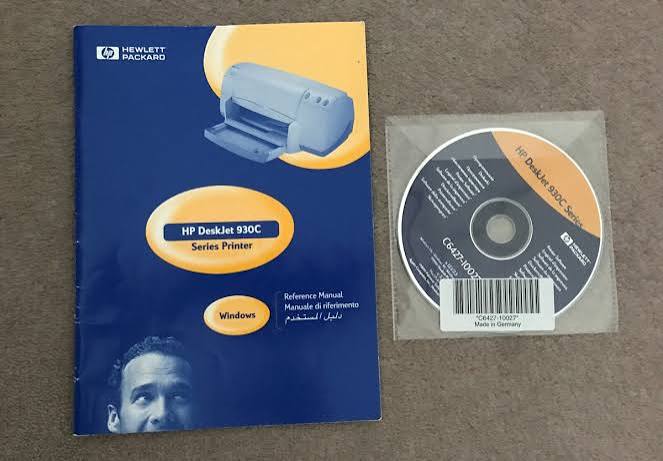
HP is above all printers and all-in-ones, plus laptops, desktops and monitors. Printing hardware in particular sends people to the manual often: replacing cartridges, setting up Wi-Fi printing, clearing jams and resetting errors are all described in the official guide.
Let’s go through the HP lineup, explain why the official manual is useful, and show how to find the document for a specific model so you don’t waste time on forums full of conflicting advice.
“A printer rarely breaks — more often it’s just waiting for the owner to open the manual.”
HP product range and device types
HP’s printing range includes the inkjet DeskJet, ENVY and OfficeJet series, laser LaserJet models, plus large all-in-ones and wide-format devices. Alongside them are consumables, scanners and continuous-ink-supply systems.
The computing line is Pavilion, ENVY, Spectre and business laptops, all-in-ones, desktops and monitors. HP ships a user manual for each device, and for printers, separate guides to network setup and maintenance.
What a user manual gives you
An HP manual saves the most time with printers. It walks step by step through installing cartridges, aligning heads, setting up wireless printing and clearing the paper path — tasks that otherwise turn into long trial and error.
For laptops the manual matters at first setup, when updating and when diagnosing. If you service devices of various makes, it’s convenient to keep the documentation in one place — for example, the Manual Machine catalog, where manuals are organized by brand and model.
Where to find a HP manual online
Look for the manual in a specialized library so you don’t grab a file for a different model. On manualmachine.com pick the brand and specify the device, and get access to user manuals, setup guides and service documents.
All of the brand’s materials are gathered in the HP section. Documents are sorted by category (printers, laptops, monitors) and model, so by the device number you quickly find the right manual.
Typical problems and how to fix them
Where do you check an HP model? On printers the code (for example, DeskJet 2700 or LaserJet M15) is on the body and in the menu; on laptops it’s on the bottom label and in system information. Search by that code.
Why won’t an HP printer print over Wi-Fi? Usually it’s an incorrect network connection or an outdated driver. Step-by-step wireless-printing setup is always in your model’s manual.
How do you clear a paper jam without risk? The manual shows which covers to open and which way to pull the sheet so you don’t damage the mechanism. Guessing here isn’t worth it.
What kinds of manuals exist
Documentation for HP devices, printers and computers rarely stops at a single booklet. As a rule it’s a user manual describing features and care, a separate note on installation or first startup, and, for complex devices, service documentation with schematics and parameters.
This split is convenient: if you just need to work out the modes, the user guide is enough; if maintenance or component replacement is planned, open the service document. Choosing the right file type from the start spares you extra searching and confusion.
How to determine the exact model
The exact model is where any documentation search for HP devices, printers and computers begins. Look for the factory plate on the body, back or bottom panel, and on large appliances along the door rim or inside the compartment. On devices with a menu the number is often in the information section.
Copy the code in full, together with the letter and digit indices. Similar-looking models often have different boards, programs and spare parts, so it’s the full number that guarantees the manual fits your unit.
Why you shouldn’t lose the manual
It’s useful to have the HP manual within reach in advance rather than searching at the moment of trouble. Precisely when the device behaves oddly, the manual saves the most time and nerves, prompting the exact steps instead of trial and error.
The digital format makes storage simple: the document doesn’t get lost, opens from any device, and is found by model code. A link saved in advance pays off at the very first non-standard situation.
Practical tips for using your HP
A few simple habits noticeably extend the life of HP devices, printers and computers. Regularly clean the accessible filters and surfaces, don’t exceed the loads and modes stated in the manual, and at the first sign of a fault check the diagnostics section rather than putting the problem off.
It’s also worth following the recommendations on power, water or consumables — it’s precisely their violation that most often leads to premature wear. All of this is listed in the official manual for your model, and following it costs less than any repair.
Will a manual from a similar model do? Within one HP series devices are often close in construction, and a shared document may help. Still, it’s more reliable to go by the manual for your exact model, since even small differences affect modes and servicing.
Is a manual only in a foreign language a problem? As a rule, no: the diagrams, tables and pictograms for HP are universal and read without translation. For most in-demand models a localized version exists as well.
Why a catalog is more convenient
Searching for a manual blindly through a browser often leads to stranger’s or incomplete files, and sometimes to sites with intrusive ads and paid access. A dedicated library removes these risks: HP materials are gathered and sorted by model, so finding the right document is simpler and faster.
Another plus of a structured catalog is completeness. On a model page all documentation types are usually available at once, from a quick-start guide to a service manual. That’s more convenient than re-phrasing a query and sifting the results each time.
Safety and warranty terms
Few people read the warranty section, but it’s exactly what ties the HP manual to your rights. The manufacturer specifies what counts as correct operation, and deviating from it — unsuitable modes, unauthorized intervention, third-party consumables — can become a reason to refuse service.
With HP hardware it all comes down to setup details, and they’re collected in the official manual. Find the guide by your model number, and printing, scanning and basic diagnostics stop eating your time.