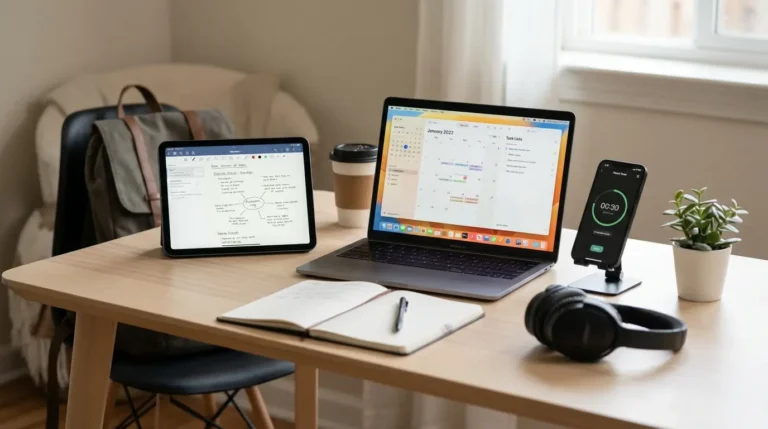
College life is a whirlwind, right? Between lectures, study groups, part-time jobs, and (let’s be honest) a little bit of social time, keeping everything straight can feel like juggling flaming chainsaws. For years, students have relied on their smartphones for quick tasks, but what if you could harness the power of your favorite Android apps on your desktop, turning your PC into a super-efficient study station?
With the rise of Android emulators and even native Android integration on some operating systems, bringing your mobile productivity powerhouses to a bigger screen is easier than ever. This isn’t just about convenience; it’s about creating a seamless workflow that keeps you focused, organized, and on top of your academic game. Forget constantly switching between devices; let’s dive into the essential Android productivity apps that can transform your desktop into a true academic command center.
Why Bring Android Apps to Your Desktop?
You might be thinking, “Why bother? I have my phone right here.” And that’s a fair point. However, imagine the benefits: a larger screen for intricate tasks, a physical keyboard for faster typing, and the ability to multitask across different apps without squinting at a tiny display. For things like research, writing, and detailed planning, the desktop experience simply can’t be beaten. It minimizes distractions by keeping your phone a phone (for calls and quick checks) and turns your computer into a dedicated workspace.
This blend of mobile convenience and desktop power is a game-changer for students navigating the complexities of their courses. Whether you’re an engineering major sketching designs, a literature student annotating PDFs, or a business student crunching numbers, these apps, when supercharged on your desktop, offer a level of efficiency that can significantly ease your academic burden.
The Foundation: Your Digital Notepads and Organizers
Effective note-taking and robust organization are the bedrock of academic success. Forget scribbling on loose papers; digital tools not only keep your notes safe but also make them searchable and shareable.
1. Google Keep: Your Sticky Note Powerhouse
Think of Google Keep as the ultimate digital sticky note app, but with superpowers. You can jot down quick thoughts, create checklists for assignments, set reminders based on time or location (perfect for remembering to grab that textbook from the library), and even record voice memos that Keep transcribes for you.
On your desktop, Keep really shines. You can have multiple notes open, color-code them by subject, and easily drag and drop information between them. Need to quickly capture an idea during an online lecture? Pop open Keep. Brainstorming for an essay? Create a checklist of points. It integrates seamlessly with your Google account, so everything syncs across devices instantly. This makes it fantastic for quickly capturing ideas on your phone and then expanding on them with your keyboard on your desktop.
2. Evernote: The Comprehensive Digital Filing Cabinet
If Google Keep is your digital sticky note, Evernote is your entire digital filing cabinet. It’s designed for more robust note-taking, project organization, and information archiving. You can create notebooks for each course, clip entire web pages for research, annotate PDFs, and even search handwritten notes.
Running Evernote on your desktop means you can immerse yourself in your research without distraction. Imagine researching a topic, clipping relevant articles, and then writing your summary all within the same application, taking full advantage of your larger screen real estate. Its powerful search function is a lifesaver when you’re trying to find that one obscure fact you noted months ago.
3. Microsoft OneNote: For the Visual and Structured Learner
OneNote is a fantastic option, especially if you’re already in the Microsoft ecosystem (think Word, Excel, PowerPoint). It operates like a digital binder with sections and pages, allowing for incredible flexibility. You can type notes, embed files, draw freehand (especially useful if you have a tablet or touchscreen monitor), record audio, and even embed videos.
On your desktop, OneNote allows you to truly build out comprehensive study guides. You can have your lecture slides on one side and your typed or handwritten notes alongside them. For group projects, its sharing features are excellent, allowing multiple people to contribute to the same notebook in real-time. It’s perfect for students who prefer a more structured, yet highly customizable, note-taking experience.
Staying Organized: Task Management and Scheduling
Keeping track of deadlines, appointments, and study blocks is crucial. These apps ensure nothing slips through the cracks.
1. Todoist: Your Personal Task Master
Todoist is a clean, intuitive task manager that helps you organize everything from major assignments to daily chores. You can create projects for each class, set due dates, add subtasks, and even assign priorities. Its natural language input means you can type “Research paper due Friday” and it will automatically set the reminder.
On your desktop, Todoist becomes your central hub for all your to-dos. You can easily drag and drop tasks to reschedule, view your upcoming week at a glance, and integrate it with your calendar. For students who thrive on checking things off a list, Todoist offers immense satisfaction and helps you visualize your progress. This is especially useful when juggling multiple courses and extracurriculars; you can break down large projects into manageable steps and allocate specific times to work on them.
2. Google Calendar: Your Academic Timekeeper
While you might already be using Google Calendar on your phone, bringing it to your desktop transforms it into a powerful scheduling tool. You can easily block out study times, add reminders for classes and meetings, schedule group project sessions, and even integrate it with other apps.
On a larger screen, managing your schedule becomes effortless. You can view your entire week or month, identify potential conflicts, and strategically plan your free time. It’s an indispensable tool for time management, helping you avoid burnout by ensuring you allocate time for both work and relaxation. If you’re tackling online classes, tools like this are even more critical, and a great resource for strategies is “Surviving Your First Semester of Online Classes: A Student’s Guide” which emphasizes the importance of a structured schedule.
Research and Reading Tools
College involves a lot of reading and research. These apps make it more manageable and efficient.
1. Adobe Acrobat Reader: Annotate and Highlight Like a Pro
PDFs are the lingua franca of academia. Lecture slides, research papers, e-textbooks – you’ll encounter them daily. Adobe Acrobat Reader allows you to open, view, and, most importantly, annotate PDFs directly. You can highlight key passages, add comments, underline text, and even fill out forms.
On your desktop, with a larger display, annotating complex research papers or textbooks becomes much less tedious. You can comfortably read lengthy documents and mark them up as if they were physical copies, all while keeping your notes digitally organized and searchable. This is a game-changer for critical reading and preparing for discussions or exams.
2. Pocket: Save Articles for Later, Guilt-Free
Ever stumble upon an interesting article online but don’t have time to read it right then? That’s where Pocket comes in. It allows you to save articles, videos, and web pages from any device to read later, even offline. It strips away distractions like ads, presenting the content in a clean, readable format.
Using Pocket on your desktop means you can build a research library throughout the week and then dedicate a specific study block to catch up on your readings without getting sidetracked by other tabs. It’s excellent for compiling resources for essays or presentations without clogging your browser bookmarks.
Writing and Editing Assistants
When it comes to putting your thoughts on paper (or screen), these apps offer invaluable assistance.
1. Grammarly Keyboard: Your Desktop Writing Coach
While Grammarly has a fantastic desktop application and browser extension, using its Android keyboard on an emulator can provide an additional layer of checking, especially if you’re drafting notes or quick emails within other Android apps. It checks your grammar, spelling, punctuation, and even offers style suggestions, ensuring your writing is clear and polished.
Having this level of scrutiny available as you type, whether it’s for a quick response to a professor or the initial outline of an essay, can save you from embarrassing mistakes. It acts as a silent co-editor, helping you improve your writing skills over time. For more comprehensive academic assistance with your writing, services like MyAssignmentHelp offer expert guidance.
2. Google Docs/Microsoft Word: Collaborative Writing Powerhouses
Okay, so these aren’t strictly Android-only, but their Android app versions are incredibly robust and sync flawlessly with their desktop counterparts. The real magic happens when you leverage their collaborative features on a desktop emulator.
Imagine working on a group project where you and your teammates are simultaneously editing a document, seeing changes in real-time. On a larger screen, managing comments, suggestions, and tracking changes becomes far more intuitive. This seamless integration between mobile and desktop ensures you can start a draft on your phone during your commute and then refine it with full desktop functionality when you’re back at your desk. If you ever find yourself struggling with complex writing tasks, particularly those involving specialized knowledge like android app writing help, remember that dedicated services can provide tailored support.
Mind Mapping and Brainstorming Tools
Sometimes, you need more than a list to organize complex ideas. Visual tools can make a huge difference.
1. Mindly: Visualizing Your Ideas
Mindly is a beautiful and intuitive mind-mapping app that helps you structure your thoughts, capture ideas, and plan projects. Instead of linear notes, it uses a spherical interface where you can branch out ideas from a central theme.
On a desktop, Mindly gives you the canvas to truly let your ideas flow. Brainstorming an essay, outlining a presentation, or breaking down a complex problem becomes a visual exercise. Seeing the connections between ideas laid out clearly can spark new insights and help you structure your work more effectively. It’s perfect for visual thinkers who want to move beyond bullet points.
2. SimpleMind: Flexible Mind Mapping for All Styles
SimpleMind is another excellent mind-mapping tool that offers more traditional tree-like structures while still being incredibly flexible. You can add images, videos, notes, and links to your mind maps, making them rich repositories of information.
Leveraging SimpleMind on your desktop allows for complex brainstorming sessions. You can map out an entire semester’s worth of topics for a course, break down a massive research project into smaller components, or visually organize your notes for an upcoming exam. Its versatility caters to different thinking styles and project complexities.
Essential Utilities for Seamless Desktop Integration
To truly maximize your Android apps on desktop, a few utility apps can make the experience even smoother.
1. Pushbullet: Bridging the Phone-Desktop Divide
Pushbullet is a fantastic utility that connects your phone and computer. It allows you to send links, files, and notes between devices with ease. You can also get your phone’s notifications directly on your desktop, reply to texts, and even see incoming calls.
This means less picking up your phone, which translates to fewer distractions while studying. If a classmate texts you about a project, you can reply from your desktop without breaking your flow. It’s an invaluable tool for maintaining focus while staying connected.
2. Solid Explorer: File Management on Steroids
When you’re dealing with various files from different apps – PDFs, documents, images – a robust file manager is essential. Solid Explorer offers a dual-pane layout, cloud integration (Google Drive, Dropbox, etc.), and network support (FTP, SFTP).
On your desktop, Solid Explorer can help you efficiently organize files downloaded or created within your Android apps, moving them to specific folders or uploading them to cloud storage. It ensures that your digital workspace remains tidy and that you can always find what you’re looking for, regardless of where it originated.
Conclusion
Bringing your favorite Android productivity apps to your desktop isn’t just a tech trick; it’s a strategic move to optimize your study environment. It allows you to leverage the best of both worlds: the portability and instant access of mobile apps combined with the power and screen real estate of your computer.
By creating a seamless ecosystem where your notes, tasks, research, and writing tools flow effortlessly between devices, you can minimize friction in your workflow and maximize your focus. This hybrid approach allows you to work smarter, not just harder, giving you an edge in the competitive landscape of college academics.
So, take some time to explore these apps, experiment with how they fit into your study routine, and discover the enhanced productivity that awaits. Your desktop is no longer just a computer; it’s your integrated command center for academic success.